Graphic Specifications

File Formats

ADOBE ILLUSTRATOR CS2 OR ADOBE PHOTOSHOP CS2

We print all graphics from the Macintosh Operating System using Adobe Illustrator CS2. Illustrator is our program of choice because it works very well with our printing production program (Wasatch) and it also has a very large layout area (227.5" Wide x 227.5" High) which allows most layouts to be created at 100% scale.

If you cannot do your layout in Illustrator or Photoshop, we can certainly try and work with a few other programs if you will follow our instructions. View the tables below for more information on acceptable file formats and applications.

We CANNOT print with files from Pagemaker, Microsoft Publisher, Microsoft Word or Microsoft PowerPoint. These files are not suitable for large format printing and if submitted will require charges for recreation.

OTHER FILE FORMATS

Adobe Illustrator / Photoshop CS2 Preferred, no need to convert.
QuarkXpress

Steps for Converting QuarkXpress Documents:

  1. Collect for output
  2. Save page as .eps
  3. Open file in Illustrator. Compare with QuarkXpress file to make sure everything is still in place such as images in boxes and text! If everything looks OK, outline fonts and save.
  4. Provide all placed images in a linked images folder.
  5. Provide color hard copy from QuarkXpress if possible.
Freehand

Steps for Converting Freehand Documents:

  1. Save page as .eps
  2. Open the file in Illustrator and compare with Freehand original. Look closely for problems with gradients as they sometimes do not convert properly! If everything looks OK, outline fonts and save.
  3. Provide all placed images.
  4. Provide color hardcopy from original Freehand file if possible.
CorelDraw

Steps for Converting CorelDraw Files:

  1. Convert all fonts to curves.
  2. Save file as .ai or .eps
  3. Open .ai or .eps file in Illustrator and compare with Corel original. Look closely for problems with gradients, filters and effects as they sometimes do not convert properly!
  4. Provide color hardcopy from original CorelDraw file if possible.
Adobe InDesign

Steps for Converting Adobe InDesign Documents:

  1. Convert all text to outlines.
  2. Go to File>Package
  3. Fill out printing instruction form.
  4. Package the document including all links.
  5. Re-open InDesign file from new folder.
  6. Go to File>Export
  7. Export as .eps and save to same new folder.
  8. Provide color hardcopy from InDesign if possible.

General File Setup

TEMPLATES:

In most cases, for our standard displays, we have graphic templates, which can be requested from your account representative and sent via email to you and/or your artist or design firm. Templates contain all necessary panel sizes and are sent as PDF files that can be viewed and printed from Adobe Acrobat. Templates may also be opened and edited in Adobe Illustrator which will allow your artist to place your artwork directly into the template for artwork submission. If you do not have Illustrator and are working in Photoshop, please use the template for reference only. Do not place the template into Photoshop.

LAYOUT SCALE:

All layouts should be 100% scale if possible. 50% scale is fine if your layout exceeds 227.5" wide or high, but please be sure and notate this scale in the Illustrator file.

RESOLUTION & PLACED IMAGES:

All raster artwork should have a minimum resolution of 85dpi and a maximum resolution of 150dpi at 100 % scale. When raster images are placed into an Illustrator layout, images should be linked and never embedded. Linked raster mages should also be included with artwork submission. This way if we need to color correct or cleanup he image in any way, we will have the necessary linked file to work with.

A note regarding resolution! Do not try to add dpi or resolution to an image, which is too low in resolution, by adding pixels to the image size in Photoshop. This is called interpolation, and will only result in degradation of clarity and blurry low quality print.

LAYERS:

If submitting Photoshop files, it is strongly recommended that you provide us with both a layered psd or tif file as well as a flattened version saved as a psd or tiff file. The layered file will make any necessary changes, cleanup or color matching possible if required. LZW compression of tiff files is encouraged.

ILLUSTRATOR EFFECTS & FILTERS:

Using effects and filters on vector elements Illustrator such as Drop Shadows and Transparency is discouraged because it vastly increases the complexity and size of the file making the file very difficult to manipulate and save. This type of work should be done in Photoshop and then placed into Illustrator as a linked file.

GRADIENTS:

Gradients, which are created in Photoshop and then placed in an Illustrator layout, will produce much smoother transition of color when printed in large format than a gradient created within a vector program. Vector gradients may look fine when printed at 8.5" x 11" but will band and segment when printed at large format sizes.

FONTS:

Convert all type to outlines if submitting Illustrator file. Rasterize type if submitting Photoshop file.

COLOR SPACE:

CMYK is preferred because our printers are all CMYK printers. We can of course print RGB files, but when printed on a CMYK printer, your prints color may differ from what you initially viewed on your computer monitor during the layout stages, as some RGB colors are not attainable in CMYK. When your files are all created in CMYK you will get the best on-screen indication of how your files will actually look when printed. Duotones should be converted to CMYK. Our working color space in Illustrator and Photoshop is U.S. Web Coated (SWOP) v2.

BLEED:

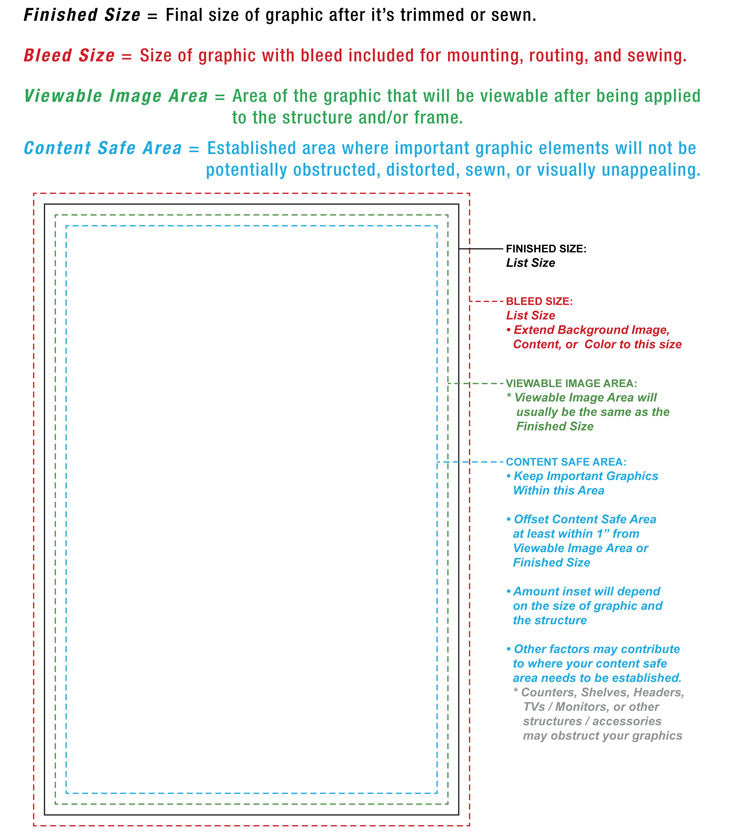
The best way to determine if bleed is required for any specific graphic is to request the appropriate graphic template from your account rep. This template will include bleed specs. If a template is not available for you graphics, use this rule. If your graphics ARE printed on FABRIC, please include 2-4" bleed on all sides. If your graphics are printed ON ANY OTHER MATERIAL, you probably DO NOT NEED TO INCLUDE BLEED AT ALL! Fabric graphics require bleed because of the sewing and finishing involved after printing.

COLOR HARDCOPY OF ARTWORK:

Please include a color hardcopy of your graphics along with your disks when submitting artwork. Even if the quality of the print is not great, this printed point of reference is vital to ensure that your files are opening and printing correctly. Without it, we are in the dark!

COLOR MATCHING SERVICE:

Custom Color matching is an optional service we can provide. This service is particularly helpful if your design includes Pantone colors which must be as accurate as possible within the CMYK color space.

Please keep in mind that some Pantone colors are simply impossible to achieve in CMYK, but we will certainly match it as closely as possible. If you have a Solid Color to Process color Pantone swatch book, this may be helpful in determining how closely we may be able to match specific PMS color.

We cannot at this time print true metallic colors.

The charge for this service is as follows:

First color or screen is an additional charge of $45. Each additional color is $25 per color or screen. Example: 2 colors to be color matched = $70; 3 colors = $95

What is the charge for?

The charge is for the time involved to complete the procedure for each color to be exactly matched to each Pantone specified. It involves time & materials for the artist to provide the service.

DESIGN & LAYOUT SERVICES:

Our artists can create your graphics from concept to finish, we can make requested changes, or adjust or rework an existing graphic to suit your large-scale product. All design and layout work is billed at $85.00 per hour. The artist assigned to the project can of course provide an estimate of time required before work has begun.

DIGITAL PROOFS:

The artist assigned to your project will prepare proofs in the form of pdf files that will be emailed to you for your review and approval before we print anything. Nothing will be printed before we receive your approval, so it is vital that you monitor your email and look for these proofs. This digital service is free of charge and helps us assure that placement, sizes and quantities are accurate. This type of proof however cannot be used for an indication of clarity or color, because they are fairly low in resolution and will be viewed in the RGB colorspace.

PRINT PROOFS:

If you have special concerns regarding color or image clarity, you may want to purchase Print Proofs when your order is placed. This type of proofing consists of a 10%-25% scale version of your artwork printed on the same printer that your full size version will be printed on. This will provide and overall indication of color accuracy. We will also print a section at 100% scale which will give you a good indication of clarity. The charge for this service is $45 per proof because of time and materials used in producing them.

Tips

Keep in mind how you are using your graphic:

If your graphics are viewed from 6-10 feet, image resolution clarity may not be as important as the clarity of your text. To test your graphic at a distance, size your graphic to actual print size and100dpi then view at 100% on your monitor. Stand a distance away that you feel may be similar to how your display may be commonly viewed at an event. If it meets your preferences and quality standards, it is ready to send to us. If it doesn't meet your standards, back to the drawing board.

Why an image may not work:

An image is limited to how large it will become before it distorts or pixilates. There is no definitive guideline here because many variables contribute to why an image may not be suitable. Resolution, file size, dimension size, how file was created, etc. You will need to play with your graphics to determine what works for you and your design.

Here are some suggestions when designing graphic:

  1. Adjust your layout to suit your selected images limitations.
  2. Select new image adequate for size you want it in your layout.
  3. Test your graphics & images used

Artwork Submission

You may submit your artwork in several ways depending on file size and time constraints. Include only files which are relevant to your project. This would include your layout files, any linked images, logos and perhaps fonts. Do not include unnecessary or unrelated files.

CD or DVD:

This remains our preferred method for receiving artwork. When formatting CD-R and DVD media, be sure to use universal formats. Please send your disks directly to your Godfrey Group account representative and clearly indicate the following on all disks:

  • your project name
  • your name
  • your address
  • your phone number

And remember, please send color hardcopy of your artwork along with your disks.

Send to:

The Godfrey Group
Attn: Your Account Rep
4102 S. Miami Blvd
Durham, NC 27703

E-MAIL:

Send to: "art@godfreygroup.com" If you have multiple files please put them all in one folder, if still under 5MB and compress them into a .zip archive. Please keep in mind, reducing your file size in order to email for a non- vector file may compromise your resolution quality.

Please include all of the following information in the email containing your attached artwork:

  • Your name
  • Godfrey Group project manager's name
  • Company name for order that has been placed
  • File name(s).
  • Applications used to create your files(s) and file formats.
  • If you are sending text-only for us to typeset, do not attach an existing text file from a word processor; instead, copy the portion of the text file you want to send directly into your e-mail message.

FILE UPLOAD:

Upload a file


The quickest way to send us large files up to 2 GB is to use our File Upload form. Please click the "Upload a file" button to send us a file.


Frequently Asked Questions

WHAT RESOLUTION SHOULD MY GRAPHICS BE?
Our maximum resolution for large format printing is 150 dpi. Our recommended minimum is 85 dpi.
WHY DO YOU NOT HAVE AN FTP SITE?
The shear number of files we receive coupled with the enormous size of the files we receive everyday is simply too much for any network too handle and would require more bandwidth than is reasonable. This is why we only use the File Transfer utility mentioned above in emergency situations in which an overnight disk is not an option. Please contact your account rep if you find yourself in this situation.
WILL I SEE PROOFS BEFORE MY GRAPHICS ARE PRINTED?
Yes. You will receive pdf proofs that will be emailed to you by the artist assigned to your project when your layout is ready to print. We will not print your graphics until we have received approval from you via email or phone call. If you purchased a Print Proof, your account rep will send it to you personally.
WHAT IS A VECTOR FILE?
A vector file is digital image that is created using geometrical primitives such as points, lines, curves, and polygons, which are all based upon mathematical equations to represent an image. This type of file, being not based upon a finite number of pixels like a raster image, is resolution independent and is scaleable to any size without loss of clarity. Common file extensions are .eps and .ai. Common design programs for working with vector files are Adobe Illustrator, Freehand and CorelDraw.
WHAT IS A RASTER FILE?

A raster file is digital image created from a generally rectangular grid of pixels. Common file extension are .tif,.psd,.jpeg. There are many attributes that may define a raster graphic, such as color mode and bit depth, however the most important for our purposes are the relationship between the image's actual size in inches and the resolution of the image in dots per inch (dpi).

Our optimal printing resolution on an average is 100dpi. So, for your 24" wide x 36" high graphic to print with optimal clarity, your raster image should be 24" wide x 36" high at 100dpi.

Lets say you have an image that is 8" wide x 12" high at 300 dpi. Will it work for printing a 24" wide x 36" high graphic? Sure, because the file's resolution or dpi is 3 times larger than our printing resolution. This will allow us to use these extra pixels to scale the image up to 3 times its size, which will intern resample the images resolution to our recommend printing resolution of 100 dpi.

WHERE CAN I BUY PHOTOS FOR USE IN MY DESIGN?
There are many companies who sell stock photography just for this purpose. Prices usually range from $100-$400 per image. Image prices usually vary by image resolution. The higher the resolution the pricier the image. However, for large format graphics, it usually best to buy the largest image available, otherwise your graphics may lack clarity when printed. When purchased the images are usually downloaded from the company's website. Most of these websites have search engines, which will allow you to enter key words by which to search for the type of images you need.
WHERE DO I SEND MY DISKS?

All artwork on disk should be sent to the attention of you account rep and the following address:

The Godfrey Group
4102 S, Miami Blvd
Durham, NC 27703

Please include your name, company name and phone number as well as color prints of your artwork.

WHY DO YOU REQUEST BOTH FLAT AND LAYERED VERSION OF PHOTOSHOP FILES?
Flat versions are printed and manipulated much faster but do not offer flexibility for making changes or color correction if necessary. So, if no edits need to be made to your file, we use the flat version. However if for any reason we need to make edits, the layered version will allow us to do so.
WHAT IS THE DIFFERENCE BETWEEN CMYK AND RGB COLOR?

Both are acronyms. CMYK stands for the colors Cyan, Magenta, Yellow and Black. RGB stands for the colors Red, Green and Blue.

RGB is the color system used for photography, television and computer monitors because these devices are based on emission of light. CMYK is used for printing because it is based upon reflection of light.

The RGB color space can produce more colors than the CMYK space, so artwork created in RGB for printing on a CMYK device, may contain colors that will not print as they appeared when viewing them on your computer monitor.

This is why we recommend creating or converting your art to CMYK and viewing it before it is sent to us. When converted to CMYK, even though you are looking at it on your monitor will attempt to show you visually what your art will look like when printed on a CMYK device.

WHAT IS A PANTONE OR PMS COLOR?
This is a color, which is part of the Pantone Matching System. The Pantone System is a series of color swatch books, printed on one side with a series of related color swatches. For instance, a particular "page" might contain a number of yellows varying in luminance from light to dark. The idea behind the PMS is to allow designers to 'color match' specific colors when a design enters production stage-regardless of the equipment used to produce the color. This system has been widely adopted by Graphic Designers, Reproduction and Printing Houses for a number of years now.